Right button + drag
Rotate the camera. While moving, your Keeper turns toward the camera's direction. While standing still, you can look around without turning your Keeper.
THE CINDERTON PLAYER GUIDE
From your first steps to your first moonshard. A practical handbook for the installed Windows game, with captures from the Unity client.
Download the Windows beta ↗THE KEEPER’S HANDBOOK
Practical guides to the things you can do in Cinderton. Choose a topic or search for the item, activity or character you need.
Loading gameplay guides…
No guides match that search. Try another word or reset the filters.
01 · BEGIN YOUR STORY
Download the Windows beta, install it and open Cinderton. Sign in inside the game with your Cinderton account.
Select an available town, then choose your Keeper. Return to the same town and Keeper to continue that adventure.
Choose Step Inside once your Keeper has loaded. Try moving and looking around, then walk up to a resident and click to talk. Follow the What / Who / Where instructions in your first quest.
02 · MOVE & LOOK AROUND
Rotate the camera. While moving, your Keeper turns toward the camera's direction. While standing still, you can look around without turning your Keeper.
Look around your Keeper without changing the direction they face.
Move forward while both buttons are held. Move the mouse to steer your path. Release either button to stop mouse-driven movement.
Mouse wheel: move the camera closer or farther away. Click a gathering pile to approach and collect it. Walk into range before clicking a resident or workbench. Walk through doors to enter buildings. Clicking empty ground does not move your Keeper.
03 · KEYBOARD CONTROLS
These are the default keys. A and D turn your Keeper; Q and E move sideways. While steering with the right mouse button, A and D move sideways too.
04 · MAKE IT YOURS
Open Settings inside Cinderton to select WASD or EDSF and rebind movement and action keys. The shortcut labels in your game reflect your saved choices. Website settings do not change the installed game.
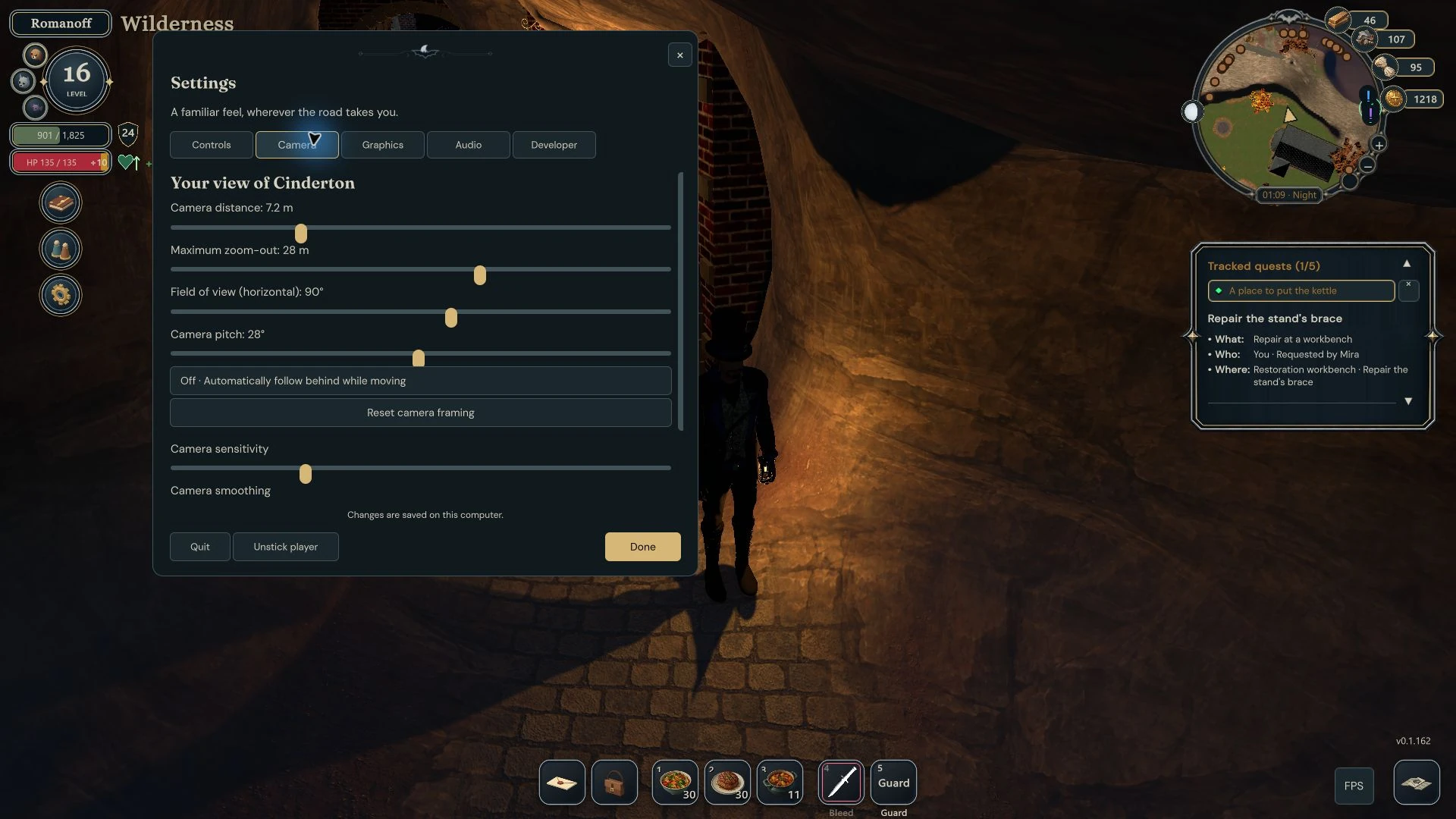
Adjust camera distance, maximum zoom-out, horizontal field of view, pitch and mouse sensitivity there too. Automatic follow-behind is optional and off by default, so your chosen view stays in place while you move. Indoors, the camera moves closer to avoid walls.
Local practice is unsaved. For continuing progress, sign in and play a saved Keeper. If a save or connection error appears, follow the game’s recovery instructions.